
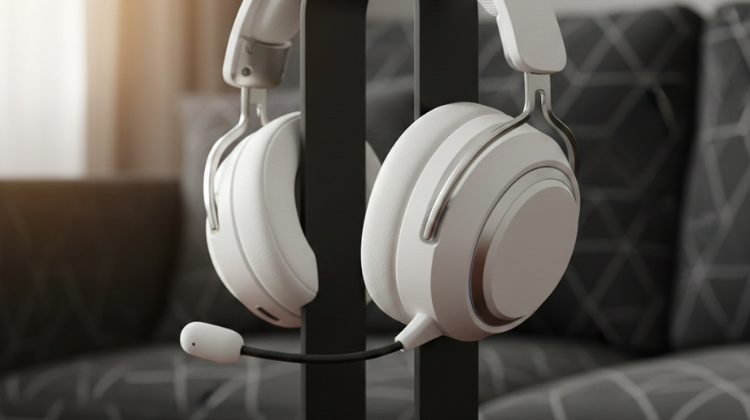
Connecting your Sony WH-1000XM5 headphones to a Mac takes only a few minutes. Start by turning on the headphones, then press and hold the power button for several seconds until you hear the pairing prompt and the indicator light begins flashing blue. On your Mac, open System Settings (or System Preferences on older macOS versions), select Bluetooth, and make sure Bluetooth is enabled. When WH-1000XM5 appears in the list of available devices, click Connect. After the connection is complete, your Mac will remember the headphones and reconnect automatically whenever they are powered on and within range.
If the headphones don’t appear in the Bluetooth list, place them back into pairing mode and refresh the list on your Mac. You can also turn Bluetooth off and back on to restart the connection. If your Mac has previously been paired with many Bluetooth devices, removing unused devices may help the WH-1000XM5 show up more quickly. Make sure the headphones are not actively connected to another phone, tablet, or computer, as this can prevent a new connection from being established.
Once connected, you can use the Sony WH-1000XM5 for music, video calls, online meetings, and movies on your Mac. For the best listening experience, select the headphones as both the audio output and microphone in your Mac’s sound settings if they are not chosen automatically. Keeping macOS and your headphones updated with the latest software can also improve connection stability, sound quality, and overall performance.