
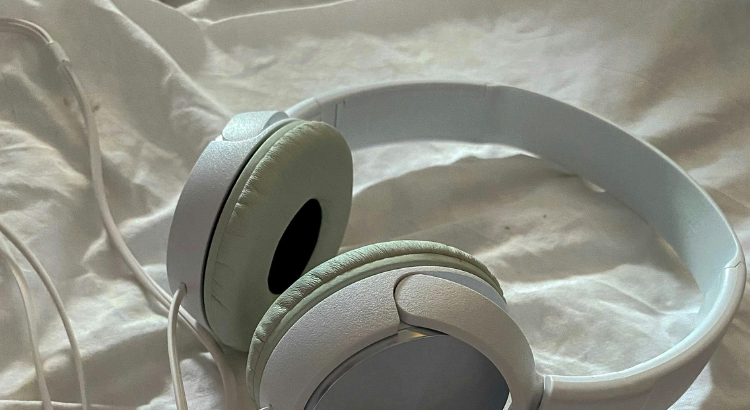
Why is My Headphone Volume So Low? Understanding Audio Issues with Bluetooth Headphones Experiencing low volume with your headphones can be frustrating. Whether you’re using wireless headphones, wired headphones, or earbuds, several factors can contribute to this issue. This article will help troubleshoot common causes and offer solutions to restore your headphone volume to optimal levels.
Understanding the Issue: Why Your Headphones Are So Quiet
The problem of low volume in headphones is widespread, impacting both wired and wireless headphones users. This issue can stem from various sources, affecting your ability to enjoy audio at your preferred volume levels. Understanding the root cause is essential to effectively troubleshoot and restore your headphones’ full potential.
Common Problems Leading to Quiet Headphones
Here are a few reasons why your headphone volume might be lower than expected. It could be due to:
- Incorrect audio settings on your device.
- Accumulated dirt and debris affecting speaker performance.
- Outdated drivers.
The quality of the audio source can also play a role. Plus, Bluetooth headphones can have their own specific limitations related to the wireless connection and the maximum volume they can produce.
Audio Settings and Headphone Volume
Here’s how to address the issue of low volume, especially if you suspect incorrect volume settings. There are a couple of key areas to examine:
- Ensure that the main volume settings on your device (PC, smartphone, or any audio device) are set to the maximum level.
- Check for any volume limiters or sound equalizers within your device’s settings, as these features can sometimes unintentionally decrease the volume output.
Bluetooth Headphones and Volume Problems
Here’s why Bluetooth headphones might have volume issues:
- The Bluetooth connection itself can impact audio transmission, causing lower volume.
- Some headphones have separate volume controls that need to be adjusted in addition to your device’s volume.
Dirt and Debris Impact on Headphones
Over time, dirt and debris can accumulate on your headphones, particularly in the headphone jack or around the speakers. This build-up can physically obstruct sound waves, resulting in reduced volume. Regularly clean your headphones to maintain optimal sound quality and ensure the full potential of your headphones.
Battery Life and Volume Impact
In wireless headphones, low battery life can sometimes impact volume. As the battery depletes, the amplifier’s ability to deliver strong audio signals may weaken, leading to a noticeable reduction in volume. Keep your Bluetooth headphones charged to ensure consistent and optimal volume levels.
Impedance and Headphone Volume
Impedance, measured in ohms, refers to the electrical resistance of headphones. If the impedance of your headphones is too high for your audio device, the device may not be able to deliver enough power to drive the headphones to their full volume. Using a headphone amplifier can help address this issue.
Audio File Quality and Headphone Volume
The quality of the audio file itself can significantly impact the volume of your headphones. Low-quality audio files, particularly those that have been heavily compressed, may have inherently lower volume levels. Always strive to use high-quality audio sources to experience the full potential of your headphones.
How to Fix Quiet Headphones
Ensuring Proper Connection
A loose or faulty connection is a common cause of low headphone volume. For wired headphones, ensure the headphone jack is fully plugged into the audio device. Try wiggling the plug slightly to see if the volume fluctuates, indicating a poor contact. For Bluetooth headphones, ensure a stable Bluetooth connection; try re-pairing the headset with your PC or audio device. A stable connection is key to maintaining optimal volume levels.
Checking and Adjusting Volume Settings
The most straightforward solution to low volume is to check your volume settings. Ensure the volume settings on your audio device are set to a suitable level. Look for volume limiters or sound equalizers that might reduce volume. Also, check if the specific app you are using has its own volume control that needs adjustment. Sometimes the problem isn’t the headphones, but the audio source settings.
Cleaning Your Headphones for Best Performance
Dirt and debris can accumulate on your headphones, especially in the headphone jack or around the speakers, leading to reduced sound quality and quieter audio. Use a cotton swab or a soft brush to gently clean your headphones and the headphone jack on your device. Regularly clean your headphones to ensure the full potential of your headphones. Cleaning is crucial for both wired headphones and wireless headphones.
Disabling Noise Cancelling Features
Some headphones feature Active Noise Cancellation (ANC). In some cases, when ANC is activated, it can affect the overall volume levels. Try disabling the ANC feature on your Bluetooth headphones to see if it improves the headphone volume. Sometimes, the signal processing for noise cancellation can inadvertently reduce volume, especially at maximum volume output.
Using a Wired Connection
If you’re primarily using wireless headphones, try switching to a wired connection, if available. Bluetooth connections can sometimes compress audio or experience interference, leading to lower volume. By using a cable, you can bypass potential Bluetooth-related issues and ensure a direct audio signal path. This method is a quick way to troubleshoot Bluetooth problems and enhance sound quality.
Using Third-Party Equalizer Apps for Better Audio Control
Consider using third-party equalizer apps to boost your headphone volume and fine-tune your audio settings. These apps can provide greater control over volume levels and frequency responses, allowing you to customize the sound to your preferences. Experiment with different sound equalizers to find the optimal setting for your headphones and audio source. Ensure the app does not introduce distortion at high volume.
Trying a Different Pair of Headphones
If you’ve exhausted all troubleshooting steps and your headphone volume remains consistently low, the problem might be with the headphones themselves. Test a different pair of wired headphones or earbuds with your audio device to see if the volume improves. This helps determine if the issue is specific to your initial headphones or if the problem lies elsewhere, like in your PC sound card or other audio device settings.
When to Seek Professional Help
If you’ve attempted all troubleshooting steps and your headphone volume remains consistently low, it might be time to seek professional assistance. A technician can diagnose potential hardware issues within your headphones or audio device, such as a damaged speaker or faulty internal cable. Before seeking professional help, make sure that you have checked all the possible audio settings on your device and that there are no software glitches that are causing the low volume issues. If the problem persists, consider seeking expert help to restore the full potential of your headphones and make sure that the volume levels are at the optimal range.
Explore House of Marley Headphones
If you’re in the market for new headphones, consider exploring the House of Marley brand. These headphones are known for their sustainable materials, quality sound quality, and stylish designs. Whether you prefer wireless headphones, wired headphones, or earbuds, House of Marley offers a range of options to suit different preferences. Before purchasing, ensure that the headphones meet your audio requirements and volume expectations. The brand aims to deliver an optimal listening experience that can greatly enhance your enjoyment and allow you to listen at the maximum volume output.
Key Takeaways
To summarize, if you are experiencing low volume on your headphones, systematically troubleshoot the issue by checking your volume settings, ensuring a proper contact on the plug to the jack, clean your headphones, and testing with a different audio source. For Bluetooth headphones, confirm a stable Bluetooth connection and update the drivers. If problems persist, experiment with a third-party app equalizer or consider trying a different set of earbuds, wireless or wired headphones. By addressing these potential causes, you can restore the full volume and optimal volume levels of your headset. Remember that dirt and debris can accumulate on your headphones. Also, make sure that you disable the ANC feature. In general, remember to always check all the audio settings on your device before assuming that there is a problem with the volume of your headphones. If all else fails, seek professional help to determine any underlying hardware issues affecting your listening experience and causing your headphones to be quieter or to reduce volume.
- Why is My Headphone Volume So Low? Understanding Audio Issues with Bluetooth Headphones
- Apple usb-c to 3.5 mm Headphone Jack Adapter
- Lightning to 3.5mm Headphone Jack Adapter price in Pakistan
- What Headphones Does joe Rogan Use
- How to Choose Best Headphones to Prevent Hearing Loss
- 5- Best Headphones for Audio Books in USA
- What Headphones Should I Buy for Black Friday?
- London Marathon Headphones
- Why Can I Hear Myself in My Headset? A Guide to Audio