
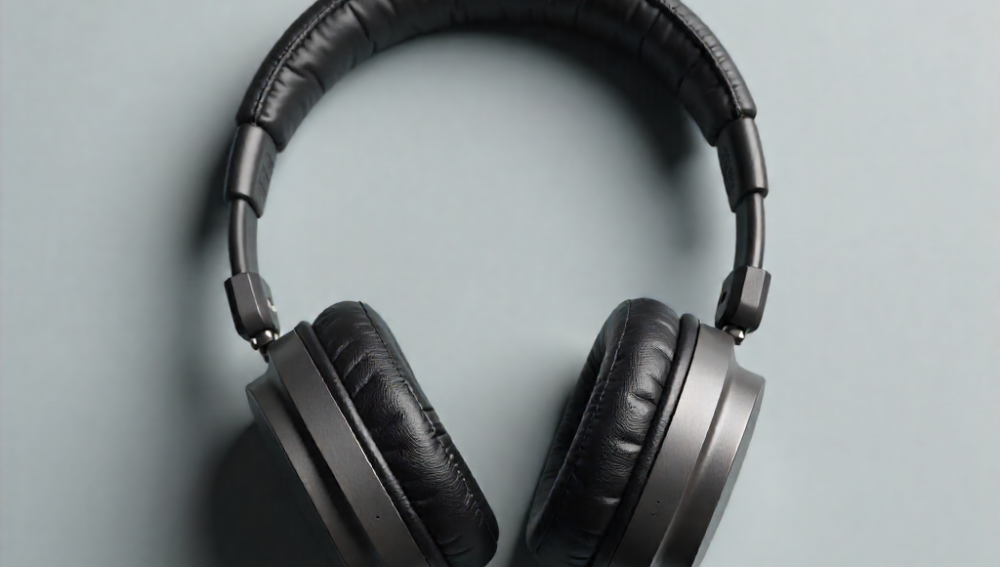
If your wireless headphones are connected but producing no sound, the issue usually relates to pairing, device settings, or audio configuration. Use the steps below to identify and resolve the problem efficiently.
### **✔ Ensure the headphones are powered on**
* Confirm the LED indicator is showing the correct “on” or “connected” color.
* If the battery is low, charge the headphones for at least **10–15 minutes** and test again.
### **✔ Verify they’re properly connected**
* Make sure your device shows the headphones as **“Connected”** or **“Paired & Connected”** (Bluetooth menu).
—
## **2. Confirm Audio Output Settings**
Even when headphones are paired, your device may still be sending audio to a different output.
### **On Windows**
1. Click the **Speaker icon** → Select your wireless headphones as the **output device**.
2. Go to **Settings → System → Sound**, and ensure the correct device is selected under *“Choose where to play sound.”*
### **On Mac**
1. Go to **System Settings → Sound**.
2. Select your wireless headphones under **Output**.
### **On Mobile Devices**
* Open **Bluetooth settings**, tap your headphones, and ensure **“Call Audio”** and **“Media Audio”** (Android) or **“Output”** (iPhone Control Center) are enabled.
—
## **3. Adjust Headphone Volume Controls**
Many wireless headphones have their own volume buttons.
* Increase the volume directly **on the headphones**.
* Make sure they are not muted.
—
## **4. Disconnect and Reconnect the Bluetooth Connection**
A fresh connection often resolves audio routing problems.
1. Turn off Bluetooth on your device.
2. Turn it back on and reconnect the headphones.
3. If the issue persists, **remove** the device (“Forget This Device”) and pair again from scratch.
—
## **5. Test With Another Device**
This step helps identify whether the issue is with the headphones or the original device.
* Connect your headphones to a different phone, tablet, or computer.
* If they work elsewhere, you may need to reset Bluetooth settings on your primary device.
—
## **6. Restart the Device and Headphones**
A reboot clears temporary glitches.
* Restart your phone/computer.
* Power the headphones off for a few seconds, then turn them on again.
—
## **7. Reset the Headphones**
Most wireless headphones include a reset feature to clear internal pairing errors.
Typical reset method (varies by model):
* Hold the **power button** or the **power + volume** buttons for **5–10 seconds** until the LED blinks.
Check your model’s manual for the exact reset procedure.
—
## **8. Check for Firmware or Software Updates**
Some headphones—especially major brands like Sony, Bose, Apple, and JBL—require app updates.
* Open the official app (if applicable) and install any pending updates.
* Update your device’s operating system to ensure compatibility.
—
## **9. Inspect for Physical or Environmental Issues**
* Ensure nothing is blocking the Bluetooth signal.
* Move closer to the device (stay within **10 meters / 33 feet**).
* Check for damage to earcups or charging ports.
—
## **10. If All Else Fails: Contact Support**
If none of the steps work, the headphones might have a hardware issue.
* Reach out to the manufacturer’s support team.
* If still under warranty, request a repair or replacement.
—
## **Need a more customized version?**
I can tailor this troubleshooting guide for:
* Windows-only
* iPhone or Android
* A specific headphone brand (Sony, JBL, Beats, Bose, etc.)
* A shorter, more simplified checklist
10 FAQs About How to Fix Headphones with No Sound
1. Why are my headphones connected but there is no sound?
This usually happens when the wrong audio output device is selected. Check your device’s sound settings and make sure your headphones are chosen as the active playback device.
2. How can I tell if my headphones are broken?
Try connecting them to another phone, laptop, or tablet. If there is still no sound, the issue may be with the headphones rather than the original device.
3. Can a loose headphone jack cause no sound?
Yes. A partially inserted or loose headphone plug can interrupt the audio signal. Remove the plug and reconnect it firmly to ensure a proper connection.
4. Why is sound coming from my device speakers instead of my headphones?
Your device may not have recognized the headphones. Disconnect and reconnect them, then check the audio settings to confirm the headphones are selected.
5. How do I fix Bluetooth headphones that have no sound?
First, disconnect the headphones and pair them again. Also check that the volume is turned up on both the headphones and the connected device.
6. Can dirt or dust stop headphones from working?
Yes. Dust and lint inside the headphone port can block the connection. Carefully clean the port using a soft brush or compressed air.
7. Why is only one side of my headphones working?
A damaged cable, worn-out speaker driver, or loose internal connection is often the cause. Testing the headphones on another device can help identify the problem.
8. Does restarting my device help fix headphone sound issues?
In many cases, yes. A simple restart can resolve temporary software glitches that prevent audio from playing through headphones.
9. What should I do if my headphone volume is extremely low?
Check the volume controls, disable any volume limit settings, and make sure audio enhancement features are not affecting the sound output.
10. When should I replace my headphones?
If you’ve tested them on multiple devices, cleaned the connections, and tried basic troubleshooting without success, replacement may be the most practical solution, especially for older headphones.